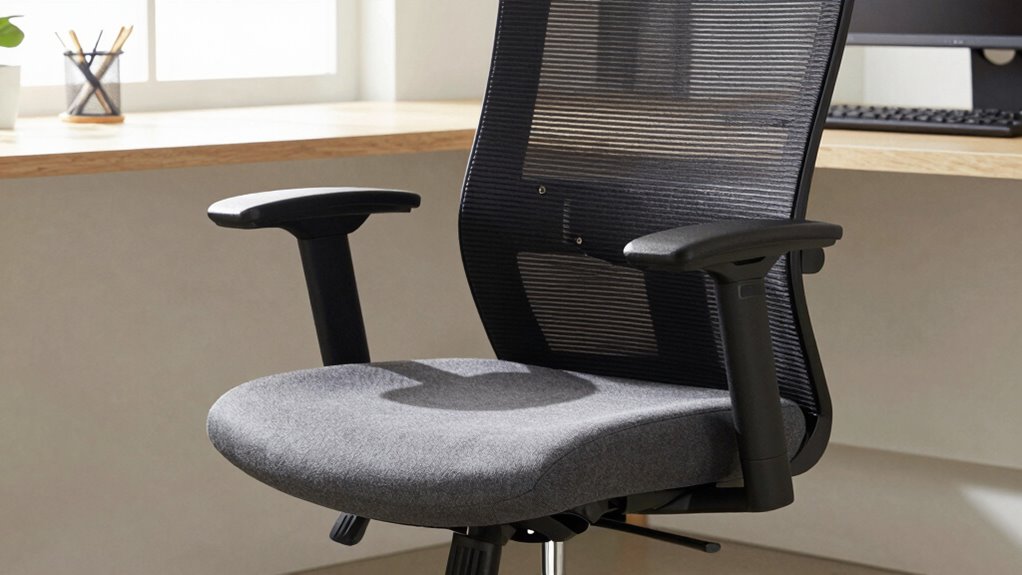

Start by adjusting your lumbar support to fit the natural curve of your lower back, preventing slouching. Next, set your seat height so your feet are flat on the floor with knees at a 90-degree angle, and hips slightly higher than knees. Then, modify the seat depth to support your thighs without pressing behind your knees. Adjust armrests so your shoulders stay relaxed. Finally, position your monitor at eye level and keep your keyboard aligned to maintain proper posture. Keep these tips in mind to *release* comfort and reduce pain as you work.

Prime made for students and young adults
- Fast, free delivery for dorm and study essentials
- Prime Video and Amazon Music included
- Member-only deals
Key Takeaways
- Adjust seat height so feet rest flat and knees are at a 90-degree angle for proper lower back support.
- Set lumbar support to align with the natural curve of your lower back, preventing slouching.
- Position the seat depth to support thighs without pressing into the back of knees, promoting circulation.
- Configure armrests to support elbows close to your body at 90-110 degrees, reducing shoulder and neck tension.
- Place the monitor at eye level and the keyboard to maintain straight wrists, ensuring overall ergonomic alignment.
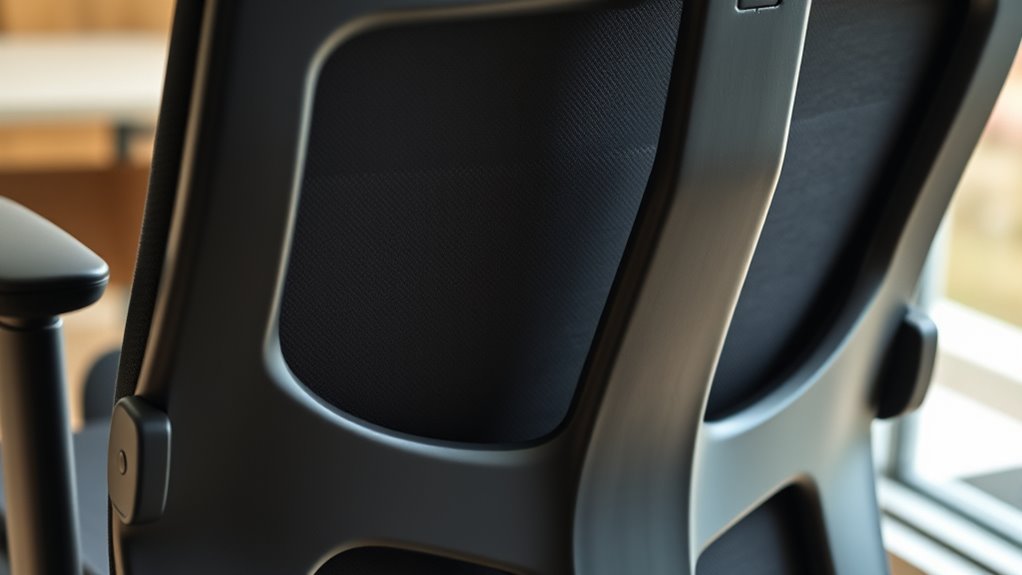
Are you unsure about the best way to set up your chair for ideal comfort and ergonomics? If so, you’re not alone. Many people overlook the importance of proper chair adjustments, which can lead to discomfort and long-term pain. The key is establishing an ergonomic posture from the start, and that begins with understanding how to properly set your chair. The first step is to focus on lumbar support. Your lower back needs proper alignment and support to prevent slouching and reduce strain on your spine. Adjust the lumbar support so that it fits into the natural curve of your lower back, providing a gentle yet firm cushion that encourages an upright posture. If your chair doesn’t have an adjustable lumbar feature, consider adding a small pillow or a lumbar roll to fill in the gap and maintain proper spinal curvature.
Once you’ve secured the lumbar support, move on to your seat height. Your feet should rest flat on the floor, with your knees at roughly a 90-degree angle. Adjust the seat height so that your hips are slightly higher than your knees, which helps maintain the natural curve of your lower back and promotes better blood flow. Avoid sitting too low, which can cause you to slouch, or too high, which can strain your thighs. Next, set the depth of your seat. It should support your thighs without pressing into the back of your knees. You want enough space between the edge of the seat and your knees to allow circulation and prevent discomfort during long periods of sitting.
It’s also important to consider ergonomic principles when making adjustments, ensuring your workspace promotes good posture and reduces strain. After that, consider the armrests. They should support your arms without lifting your shoulders or forcing your elbows into an awkward angle. Adjust the armrests to keep your shoulders relaxed and your elbows close to your body, ideally at a 90 to 110-degree angle. This reduces tension in your neck and shoulders, contributing to an ergonomic posture overall. Finally, review your monitor and keyboard placement. Keep your screen at eye level to avoid neck strain, and position your keyboard so that your wrists stay straight while typing. When all these adjustments are made in sequence, they work together to promote proper alignment and reduce the risk of pain, making your workspace more comfortable and healthier in the long run.
As an affiliate, we earn on qualifying purchases.
Frequently Asked Questions
How Often Should I Recheck My Chair Adjustments?
You should recheck your chair adjustments at least once a month to guarantee ideal comfort and support. Regularly reviewing your ergonomic accessories and adjustment frequency helps prevent discomfort and strain. If you notice any pain or discomfort, it’s a good idea to re-evaluate your chair setup sooner. Maintaining proper alignment is key, so stay attentive to how your body feels and adjust accordingly to stay comfortable during long hours of work.
Can Improper Setup Cause Long-Term Health Issues?
Think of your spine as a delicate tower—improper setup can cause cracks that worsen over time. Yes, poor ergonomic benefits from common mistakes like misaligned chair height or lumbar support can lead to long-term issues such as chronic pain or nerve problems. You need to regularly check your adjustments, ensuring your posture stays aligned, so your workspace sustains your health instead of undermining it.
What Tools Are Needed for Adjusting My Chair?
You’ll need some basic tools like an adjustable wrench or screwdriver, depending on your chair’s design. To make precise adjustments, use ergonomic accessories like lumbar supports or seat cushions if needed. Check out adjustment tutorials online for step-by-step guidance, which help guarantee you’re setting your chair correctly. Having these tools and resources makes it easier to personalize your chair for comfort and reduce long-term pain.
Are There Specific Settings for Different Body Types?
Yes, there are specific settings for different body types. You should adjust your chair’s height and tilt to guarantee your feet are flat on the floor and your knees are at a 90-degree angle. Use ergonomic cushions for added comfort and lumbar support to maintain proper back alignment. These adjustments help reduce strain, improve posture, and prevent pain, making your chair fit your body perfectly.
How Do I Know if My Chair Is Correctly Adjusted?
Think of your chair as your trusted co-pilot—if it’s not aligned, your journey becomes bumpy. To know if it’s correctly adjusted, check your posture correction: sit back, feet flat, knees at a 90-degree angle, and your lower back supported. Follow ergonomic tips like adjusting the armrests and chair height so your shoulders relax. If you feel comfortable and supported, your chair is set up just right.
adjustable office chair with lumbar support
As an affiliate, we earn on qualifying purchases.
As an affiliate, we earn on qualifying purchases.
Conclusion
Now that you know the five key adjustments, why settle for discomfort when a simple setup can make all the difference? Take a moment to fine-tune your chair today—your back will thank you. Remember, a properly adjusted chair isn’t just about comfort; it’s about preventing pain and staying focused longer. So, are you ready to sit smarter and work better? Adjust your chair now and experience the difference yourself.
ergonomic seat cushion for long sitting
As an affiliate, we earn on qualifying purchases.
As an affiliate, we earn on qualifying purchases.
As an affiliate, we earn on qualifying purchases.
Columbus Day / Indigenous Peoples' Day Picks
long weekend sales
As an affiliate, we earn on qualifying purchases.