
Poor grip techniques and an awkward ergonomic setup can cause your forearm muscles to strain, leading to pain during mouse use. When you hold the mouse too tightly or position your hand poorly, your forearm muscles work harder, resulting in fatigue and soreness. Maintaining a relaxed grip, adjusting your workspace, and practicing stretches can prevent this discomfort. Keep exploring to uncover more ways to keep your forearms healthy and pain-free.
Key Takeaways
- Excessive grip pressure and awkward hand positioning increase forearm muscle strain during mouse use.
- Poor ergonomic workspace setup and improper mouse placement contribute to forearm discomfort.
- Repetitive movements and lack of breaks lead to muscle fatigue and overuse injuries in the forearm.
- Tight or improper grip techniques cause tendon tension and can result in pain or soreness.
- Weak or inflexible forearm muscles from insufficient stretching and exercises heighten injury risk.
Learn About Your Forearm and Hand Anatomy

Understanding the anatomy of your forearm and hand is essential for addressing grip problems. Your hand muscles control fine movements and grip strength, allowing you to hold and maneuver your mouse comfortably. These muscles include the thenar, hypothenar, and interosseous groups, each responsible for specific finger movements. Beneath the muscles, your forearm bones—primarily the radius and ulna—provide structure and leverage for hand motion. These bones work together with tendons and nerves to facilitate precise control. When you use your mouse, the coordination between your hand muscles and forearm bones is critical. Recognizing how these parts interact helps you identify potential issues, like strain or imbalance, that could lead to discomfort or pain during extended computer use. Proper ergonomics and understanding your anatomy can help prevent muscle strain and improve overall comfort.
What Causes Forearm Pain When Using a Mouse?
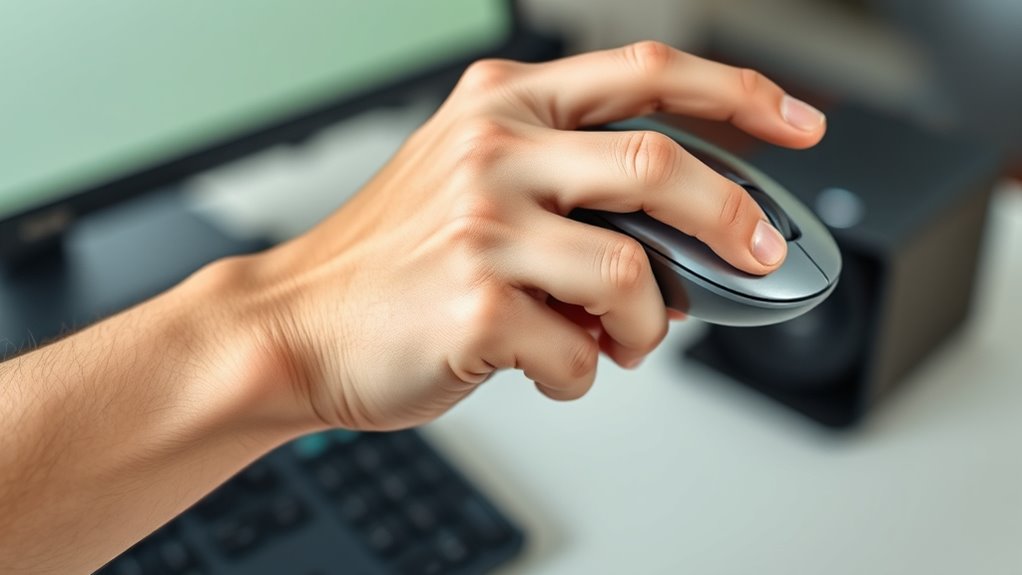
Have you ever wondered why your forearm starts to ache after hours of mouse use? The answer often lies in poor ergonomics and your forearm anatomy. Using an unsuitable ergonomic mouse can force your muscles into unnatural positions, increasing tension and strain. Repetitive movements and sustained gripping can cause overuse injuries, leading to pain. Here’s a closer look:
| Cause | Effect |
|---|---|
| Poor ergonomic design | Strains forearm muscles |
| Extended use without breaks | Builds tension in forearm tissues |
| Incorrect grip technique | Overloads forearm tendons |
Practicing proper ergonomics and choosing a well-designed mouse can significantly reduce forearm pain and protect your forearm anatomy from strain.
Spot the Signs of Grip-Related Discomfort
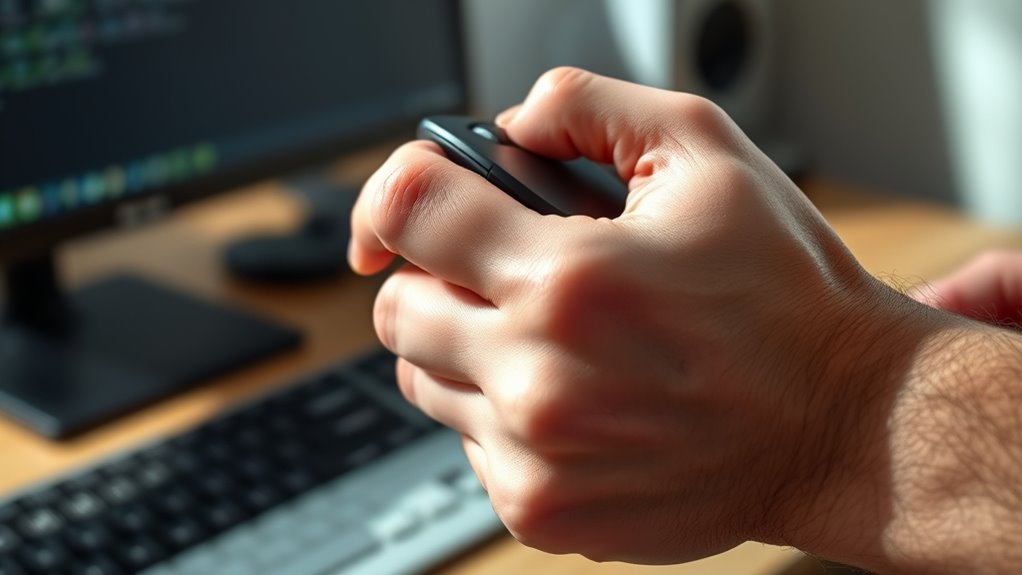
You might notice certain warning signs that indicate your grip is causing discomfort. One common sign is grip fatigue, where your hand feels tired or weak after short periods of mouse use. If you find yourself gripping tightly or frequently readjusting your hold, it’s a clear indicator your grip isn’t *ideal*. Hand soreness is another warning sign, especially if you experience aching or tenderness in your fingers, palm, or wrist. These symptoms often develop gradually but can quickly escalate if ignored. Pay attention to persistent discomfort, as it suggests your grip might be causing strain. Recognizing these signs early allows you to make adjustments, reducing the risk of long-term forearm pain and improving your overall comfort during mouse use. Additionally, proper ergonomic positioning can help prevent poor posture, which often exacerbates grip-related issues.
How Poor Technique Leads to Forearm Strain

When your grip on the mouse is too tight or awkwardly positioned, it can put unnecessary strain on your forearm muscles. Excessive grip pressure forces your muscles to work harder than needed, leading to fatigue and discomfort. Poor hand positioning can cause your wrist to bend or twist unnaturally, increasing tension in your forearm. For example, gripping the mouse with your fingers curled tightly around it or holding it too high can elevate muscle strain. Maintaining a relaxed grip and neutral hand position reduces this stress. Proper technique involves using a light grip and keeping your hand and wrist aligned naturally. Additionally, ergonomic design of your mouse can significantly impact comfort and reduce strain. These adjustments help prevent strain, making your mouse use more comfortable and reducing the risk of forearm pain.
Stretch and Strengthen Your Forearm Muscles

To reduce strain and improve your grip, start by incorporating forearm stretch techniques into your routine. Building forearm strength through targeted exercises can also make a big difference. Proper ergonomics and posture are essential components that support healthy wrist and arm use. Together, these practices help prevent discomfort and enhance your mouse-hand endurance.
Forearm Stretch Techniques
Stretching and strengthening your forearm muscles can markedly improve grip strength and reduce strain during prolonged mouse use. Forearm stretch techniques are essential for enhancing forearm flexibility and wrist mobility, which helps prevent discomfort and injury. One effective stretch is extending your arm with the palm facing up, gently pulling your fingers back with your other hand. Hold for 15-30 seconds and switch sides. Another is wrist circles, where you rotate your wrists slowly clockwise and counterclockwise, promoting joint mobility. Regularly incorporating these stretches can loosen tight muscles and tendons, easing tension from repetitive movements. Additionally, support breakfast options such as high-protein meals can aid muscle recovery and overall health. Remember, consistency is key—perform these stretches daily to keep your forearms flexible and your wrist mobile, reducing the risk of grip problems and forearm pain.
Building Forearm Strength
Building forearm strength is essential for improving grip endurance and reducing fatigue during extended mouse use. To do this effectively, incorporate targeted forearm exercises like wrist curls, reverse curls, and squeezing grip balls. These exercises help develop the muscles responsible for maintaining a firm grip, making your grip techniques more efficient. Incorporating energy-efficient cloud servers can support your digital health and wellness routines by providing reliable online resources and tools. Consistent practice increases muscle stamina and decreases strain, so you can work longer without discomfort. Focus on controlled movements and proper form to avoid injury. As your forearm muscles strengthen, you’ll notice less fatigue and better control over your mouse. Remember, building strength isn’t just about lifting heavier; it’s about making your muscles more resilient, which directly improves your grip and overall comfort during prolonged use.
Adjust Your Workspace to Prevent Pain

You can reduce pain by ensuring your mouse is properly placed, so your wrist stays in a natural position. Adjust your desk setup to keep your keyboard and monitor at comfortable heights, preventing strain. Consider ergonomic accessories, like wrist rests or adjustable stands, to support your posture and minimize discomfort. Incorporating ergonomic air purifiers into your workspace can also improve air quality, helping reduce overall discomfort and promoting better health.
Proper Mouse Placement
To prevent mouse grip problems, proper mouse placement is essential. You want your hand to rest comfortably with minimal grip pressure. Position your mouse so that:
- It’s close enough to your body, reducing reach and strain.
- Your wrist remains straight, maintaining natural hand positioning.
- The mouse’s top surface is at or slightly below elbow height for ideal comfort.
- Incorporating smart ergonomic accessories can further enhance comfort and support during extended use.
These adjustments help prevent unnecessary tension in your forearm and hand. Focus on light grip pressure—pressing too hard increases fatigue and pain. Keep your hand relaxed, with fingers gently resting on the buttons. Proper placement ensures your muscles aren’t overworking, reducing forearm discomfort and promoting better ergonomics during long hours at your desk.
Adjustable Desk Setup
An adjustable desk setup allows you to customize your workspace for ideal comfort and reduced strain. By positioning your desk at the correct height, you make certain that your ergonomic mouse stays within a natural reach, minimizing wrist and forearm tension. Keeping your forearms parallel to the floor helps prevent unnecessary strain. Incorporate proper wrist support by adjusting your desk height so your wrists remain straight and relaxed while using your mouse. A well-set workspace encourages better posture, reducing the risk of pain and discomfort. Remember, small adjustments can make a significant difference in your comfort and efficiency. Take time to fine-tune your desk setup regularly, ensuring your mouse, keyboard, and monitor are all aligned for ergonomic benefits. Personalized workspace design also plays a crucial role in preventing grip problems and forearm pain. This proactive approach helps prevent grip problems and forearm pain.
Ergonomic Accessories
Using ergonomic accessories can substantially reduce mouse grip problems by providing proper support and promoting healthier hand positioning. These tools help you maintain correct hand posture and improve grip techniques. For example, consider:
- A wrist rest that keeps your wrist neutral, reducing strain and encouraging a relaxed grip.
- An ergonomic mouse designed to fit your hand, promoting natural finger placement and minimizing awkward grip styles.
- Adjustable mouse pads with wrist support, allowing you to find the most suitable angle for comfort and reducing unnecessary tension.
Know When to See a Professional for Relief

If your mouse grip problems persist despite trying home remedies, it’s important to recognize when professional help is needed. Persistent discomfort in your forearm or wrist that doesn’t improve with adjustments signals it’s time for a professional assessment. Ignoring ongoing pain can lead to more serious issues like repetitive strain injuries or chronic tendinitis. A healthcare provider or physical therapist can evaluate your posture, grip technique, and movement patterns to identify underlying causes. They may recommend targeted exercises, ergonomic modifications, or treatments to alleviate pain and prevent future problems. Don’t wait until discomfort worsens—seeking professional guidance early ensures proper diagnosis and effective relief. Listening to your body and taking timely action can save you from long-term injury and help you regain comfort while working.
Keep Your Grip and Forearms Healthy Long-Term

Maintaining a healthy grip and strong forearms is essential for preventing long-term strain and injury. To do this, focus on your grip styles and avoid hand fatigue. First, vary your grip style regularly—switching between fingertip, palm, or claw grips—so no single muscle group bears too much load. Second, incorporate short breaks into your work sessions, allowing your hand muscles to relax and recover. Third, strengthen your forearms with targeted exercises like wrist curls and grip squeezes to build endurance. These habits help distribute effort evenly across muscles, reduce tension, and keep your grip steady. By paying attention to your grip styles and managing hand fatigue, you’ll protect your forearms and enjoy more comfortable, injury-free long-term mouse use.
Frequently Asked Questions
Can Using a Mouse With a Wrist Brace Reduce Forearm Pain?
Using a wrist brace can help reduce forearm pain by providing support and promoting proper alignment. It also encourages grip reduction, which minimizes unnecessary strain on your forearm muscles. When you wear a wrist brace, you’re less likely to tense up or overuse your muscles, leading to less pain and discomfort. Just make sure to choose a comfortable, well-fitting brace and take regular breaks to avoid dependency.
Are There Specific Mouse Designs That Minimize Grip Fatigue?
Yes, choosing a mouse with an ergonomic grip and the right size can markedly reduce grip fatigue. You might think all mice are similar, but an ergonomic design supports your hand naturally, decreasing strain. Look for a mouse that fits comfortably in your hand, with a shape that encourages a relaxed grip. This minimizes muscle effort, helping you work longer without forearm pain or fatigue.
How Does Typing Posture Affect Mouse-Related Forearm Discomfort?
Your typing posture directly impacts mouse-related forearm discomfort. When you maintain proper typing alignment, your wrist positioning stays neutral, reducing strain on your forearm muscles. Keep your wrists straight and aligned with your forearms, avoid excessive bending, and make sure your mouse is within easy reach. This way, you minimize unnecessary muscle tension, prevent fatigue, and promote healthier forearm muscles, making your work more comfortable over long periods.
Can Ergonomic Mouse Pads Help Prevent Grip Problems?
Think of ergonomic mouse pads like a cozy pillow for your wrist—they can definitely help prevent grip problems. Their ergonomic design and built-in wrist support promote natural hand positioning, reducing strain on your forearm. By providing a comfortable surface, they encourage proper grip and lessen muscle fatigue. Using one can make a noticeable difference, helping you avoid discomfort and maintain better control during long hours at your computer.
What Are Early Warning Signs of Developing Chronic Forearm Issues?
You might notice early warning signs like muscle fatigue and grip soreness in your forearm, which can indicate developing chronic issues. If your muscles feel tired after short periods of mouse use or you experience persistent soreness, it’s a sign to take breaks and adjust your grip. Paying attention to these signals helps prevent long-term problems, so don’t ignore ongoing discomfort or fatigue in your forearm muscles.
Conclusion
To keep your forearms healthy, remember that over 60% of mouse users experience grip-related discomfort at some point. Regularly stretch and strengthen your muscles, and adjust your workspace to reduce strain. If pain persists, don’t ignore it—seeing a professional can prevent long-term issues. Taking these simple steps now can save you from discomfort and potential injury down the road, ensuring you stay comfortable and productive every day.