
To reduce glare, tilt your monitor so the top of the screen is just below your eye level and angle it slightly downward. This position prevents reflections from overhead lights and windows, minimizes eye strain, and keeps your neck in a comfortable position. An adjustable monitor arm makes fine-tuning easy, ensuring ideal comfort during long hours. For more tips on perfecting your setup, keep exploring how proper tilt can enhance your workspace.
Key Takeaways
- Position the monitor so the top of the screen is slightly below eye level to prevent glare and reduce neck strain.
- Adjust the tilt so the screen angle minimizes reflections from overhead lights and windows.
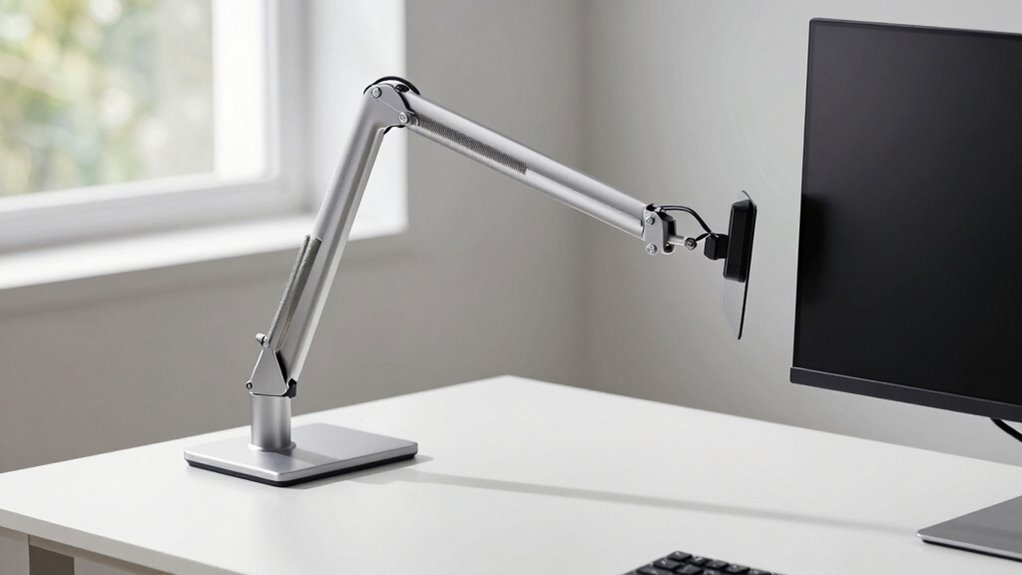
- Use a monitor arm with easy tilt, height, and rotation controls for precise, effortless adjustments.
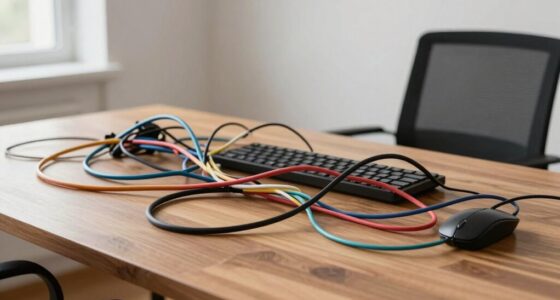
- Ensure cables are well-managed to prevent pulling or shifting the monitor, which can affect tilt and glare.
- Regularly fine-tune the tilt and position to maintain optimal viewing comfort and reduce eye fatigue.
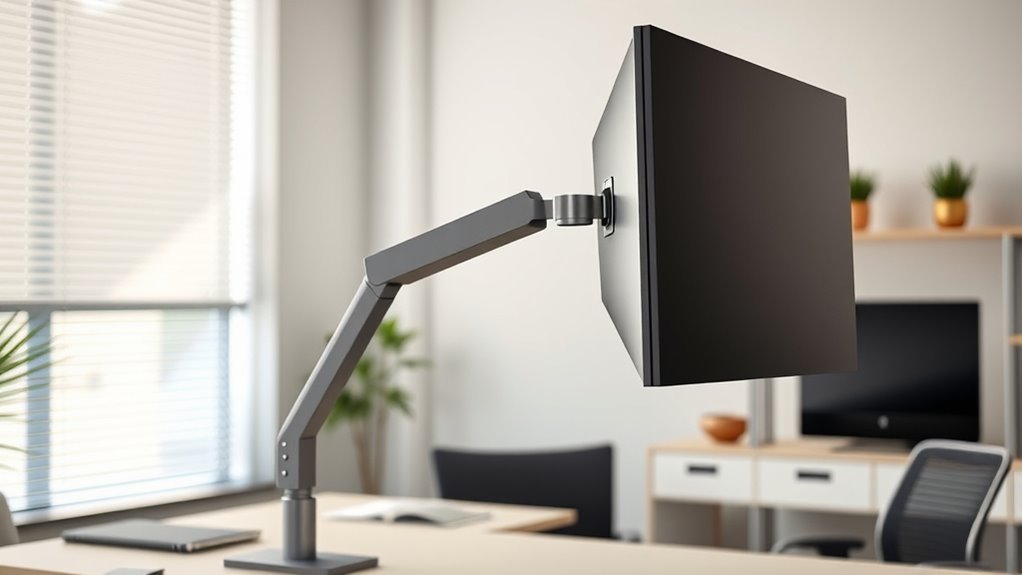
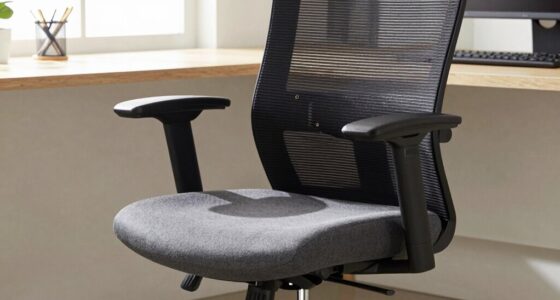
Setting up your monitor arm correctly is vital for creating an ergonomic workspace that boosts comfort and productivity. One of the most effective ways to do this is by paying close attention to the tilt of your monitor. Proper tilting helps reduce glare, minimizes neck strain, and guarantees you maintain good posture throughout the day. To achieve this, start by adjusting the monitor’s tilt so that the top of the screen is slightly below eye level. This angle prevents you from craning your neck upward or downward, which can lead to discomfort over time. Keep in mind that the tilt should also be set to minimize reflections from overhead lighting or windows, which can cause eye fatigue. Small adjustments can make a big difference in how comfortable and glare-free your viewing experience feels. Additionally, understanding the field-of-view and how it relates to your monitor’s setup ensures optimal visual comfort during prolonged use. As you set the tilt, don’t forget about ergonomic adjustments that support your overall comfort. Your monitor arm should allow for smooth, effortless adjustments to tilt, height, and rotation. Making these adjustments easy to perform means you can fine-tune your setup as needed, whether you’re working on a lengthy project or just taking a quick break. When you position your monitor correctly, you naturally reduce eye strain and avoid awkward postures that could cause long-term discomfort. It’s also important to think about your sitting posture and how your monitor’s tilt complements your chair and desk height. Proper alignment helps you maintain a neutral neck position, which is vital for avoiding tension headaches and shoulder pain. Cable management is another essential aspect of a well-setup monitor arm. When cables are tangled or hanging loosely, they can pull on your monitor, disrupting your preferred tilt and height. Use cable clips or sleeves to route your cables neatly along the arm or under your desk. This not only keeps your workspace tidy but also prevents accidental displacements that can compromise your ergonomic setup. Well-managed cables also make it easier to adjust your monitor’s tilt without snagging or pulling on wires, preserving the adjustments you’ve carefully made. When cables are organized, you’ll find that your entire workspace feels cleaner and more professional, which can boost your focus and productivity.
Frequently Asked Questions
How Do Different Monitor Types Affect Tilt Adjustments?
Different monitor types affect tilt adjustments because their screen calibration and brightness settings influence glare and visibility. For example, glossy screens reflect more light, requiring you to tilt the monitor downward to reduce glare. Matte screens diffuse light better, giving you more flexibility. Always calibrate your monitor and adjust screen brightness first, then tilt to find a comfortable viewing angle that minimizes reflections and eye strain.
Can Tilt Adjustments Prevent Eye Strain Over Long Periods?
Tilt adjustments act like a gentle breeze guiding your eye movement, helping you avoid the glare and harsh reflections that strain your eyes over time. When you tilt your monitor just right, it reduces glare and balances screen brightness, making viewing more comfortable. This way, your eyes stay relaxed, and eye strain diminishes, even during long hours. Proper tilting keeps your focus smooth and your vision clear, like a calm lake reflecting the sky.
What Tools Are Needed for Precise Monitor Tilt Setup?
To achieve precise monitor tilt setup, you’ll need a monitor calibration tool and a level to guarantee accurate positioning. Start by adjusting your desk height so your eyes are level with the top of the screen, then use the calibration tool to fine-tune display settings. Finally, use the level to set the monitor tilt, reducing glare and eye strain, and creating a comfortable, ergonomic workspace.
How Often Should I Revisit My Monitor’s Tilt Settings?
You should revisit your monitor’s tilt settings whenever you notice discomfort or your ergonomic posture feels off. Regularly checking screen calibration guarantees your display remains clear, reducing eye strain and glare. Adjust the tilt as needed to maintain a comfortable viewing angle, ideally once a month or after any significant workspace changes. This habit helps keep your setup ergonomic, preventing strain and promoting better focus throughout your workday.
Are There Ergonomic Standards for Optimal Monitor Tilt Angles?
Absolutely, there are ergonomic standards for ideal monitor tilt angles! You should aim for a tilt that promotes ergonomic posture and glare reduction, typically between 10 to 20 degrees downward. This slight tilt prevents neck strain and minimizes glare bouncing off your screen. Keep your monitor at eye level, ensuring your head stays relaxed. Regularly reassess these angles to stay comfortable and avoid long-term musculoskeletal issues—your back and neck will thank you!
Conclusion
Now that you know the tilt rule, you’re almost there. But what if the perfect setup isn’t enough? Imagine your screen’s glare vanishing, your focus sharpening, as you fine-tune that angle just right. One small adjustment could make all the difference—are you ready to discover the secret that transforms your workspace? Keep experimenting, stay attentive. Because when glare is finally gone, you’ll wonder why you didn’t do this sooner. The perfect setup is within your grasp—just a tilt away.